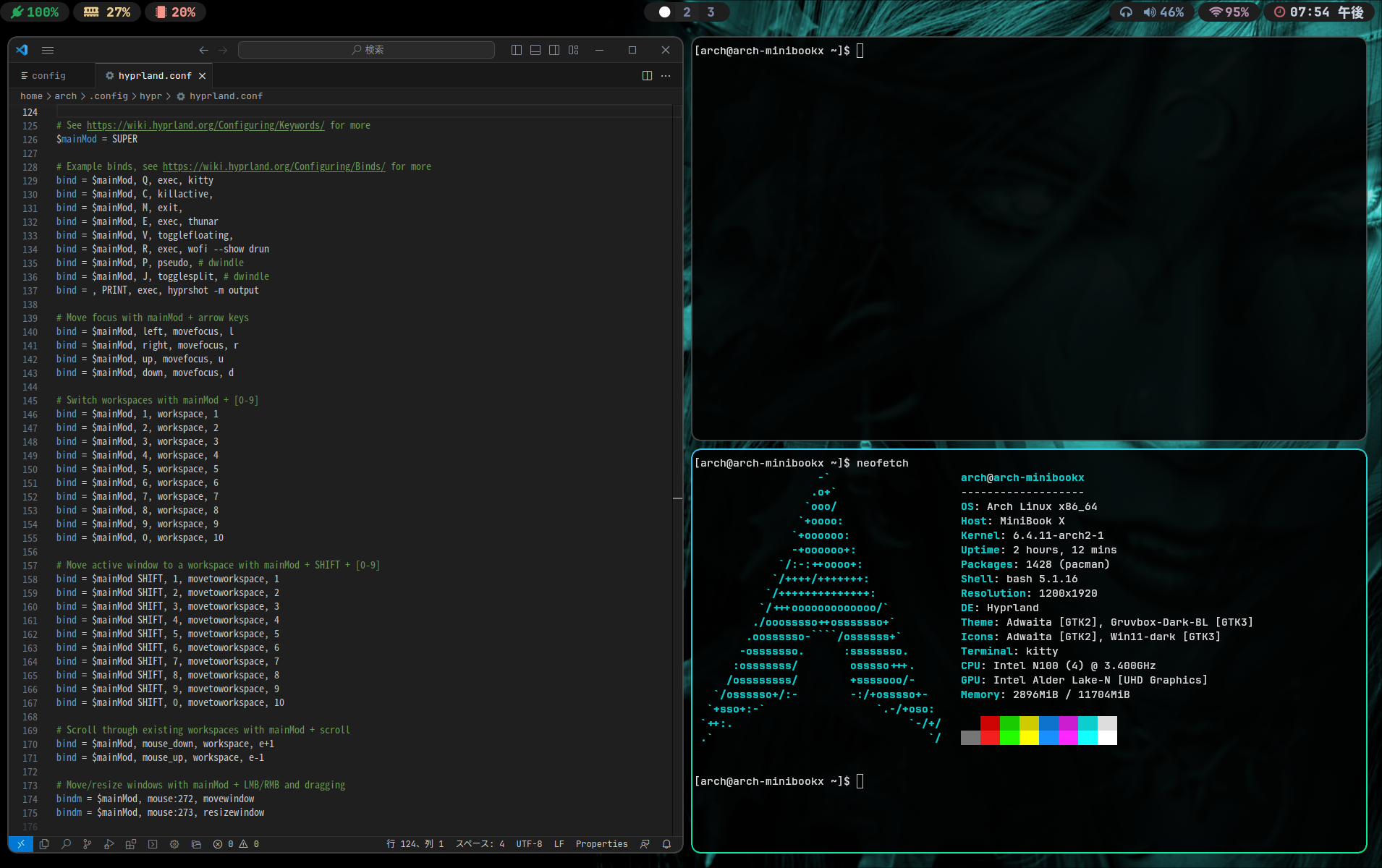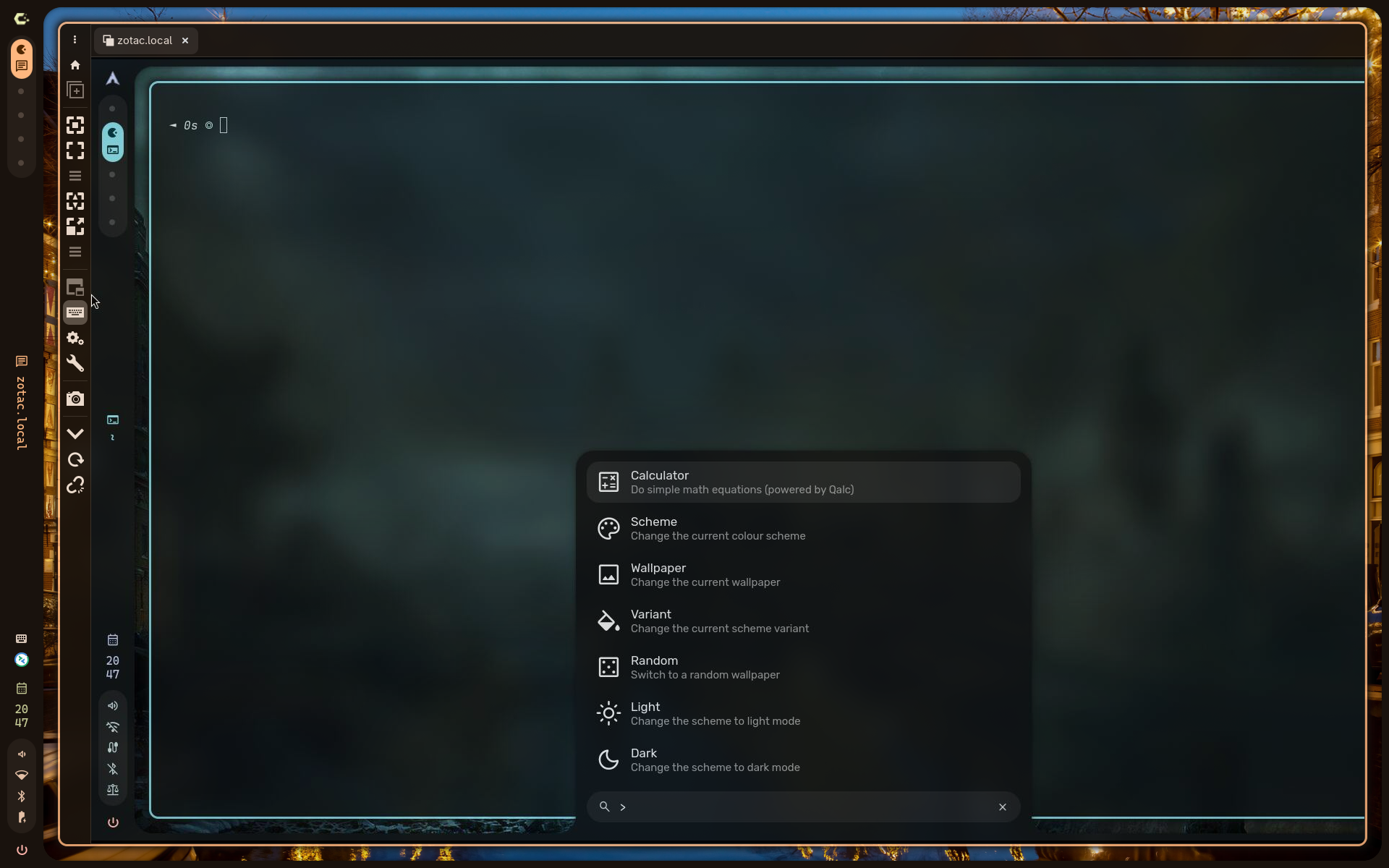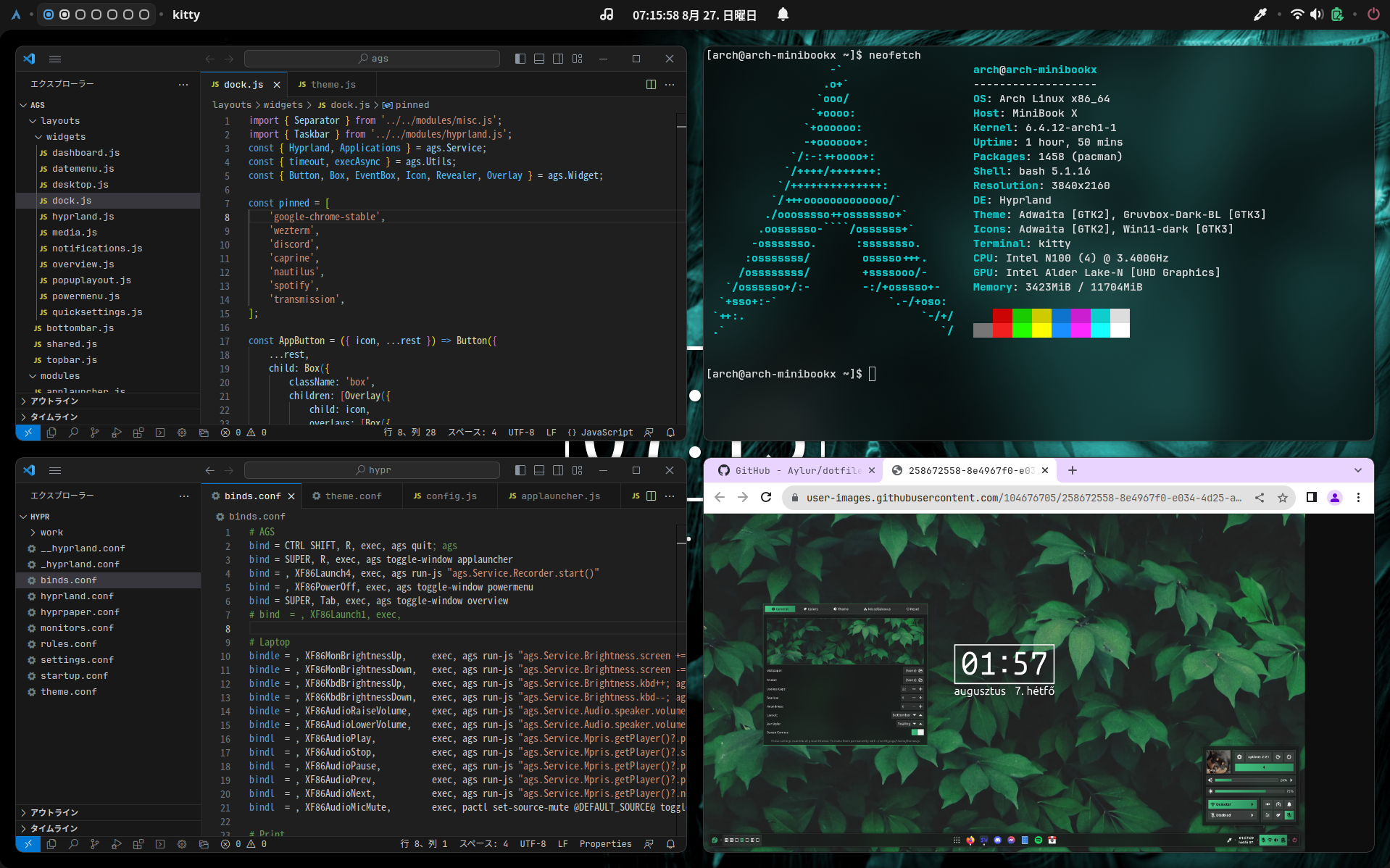
Caelestia
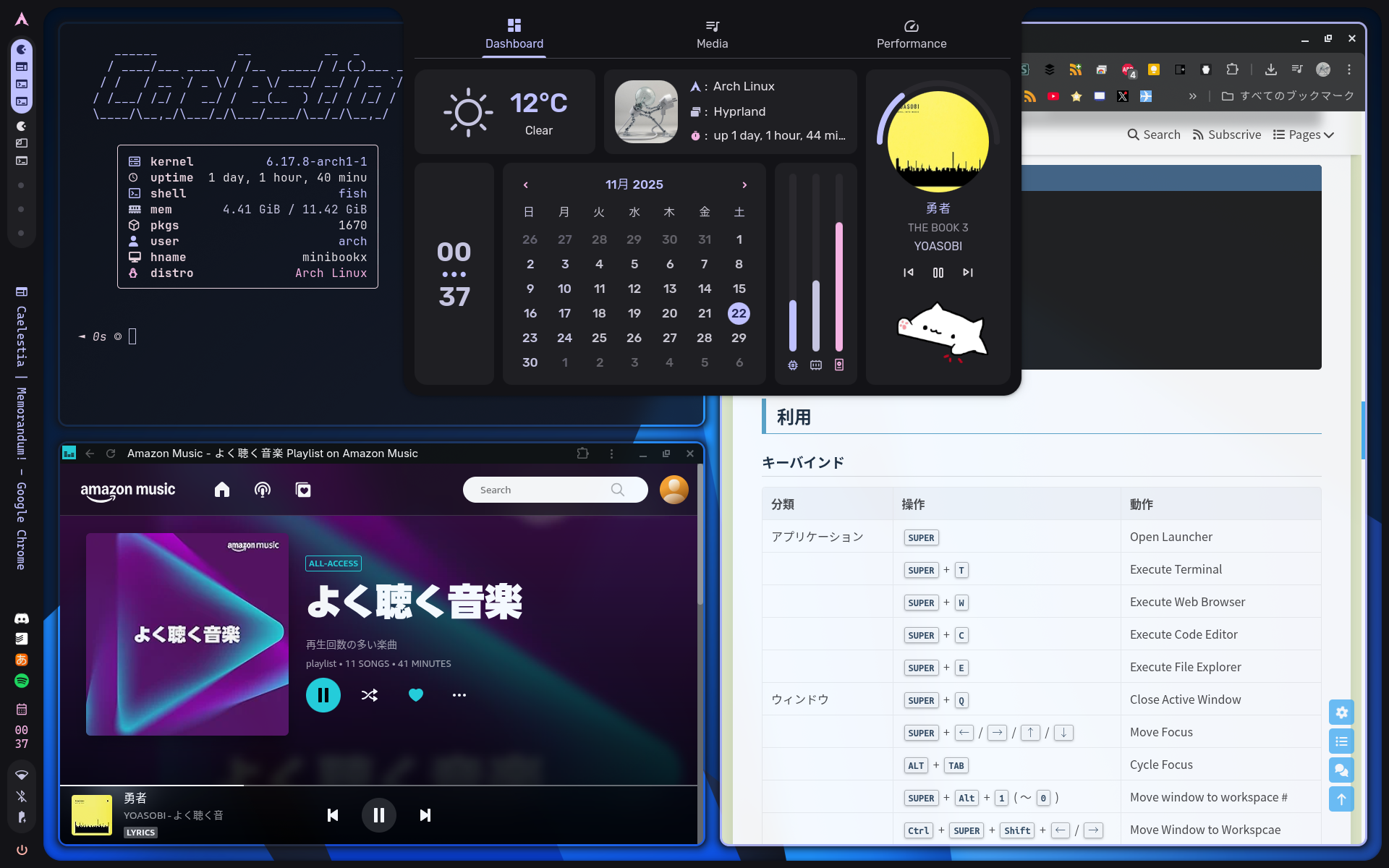
Hyprland用のCaelestia dotsを試してみました。これは良いかもしれない。
https://github.com/caelestia-dots/caelestia
https://github.com/caelestia-dots/cli
https://github.com/caelestia-dots/shell
https://www.youtube.com/watch?v=TggHDm0_vBw
2026-01-13
- 以下のワークアラウンドで
caelestiaコマンドが動作するようになりました。https://github.com/caelestia-dots/shell/issues/1076#issuecomment-3740362274paru -S $(pacman -Qmq $(pacman -Qoq /usr/lib/python3.13/)) --rebuild
2026-01-11
- quick shell が実行されない。
caelestia shell -dがエラーになるので暫定対処~/.config/hypr/hyprland/execs.conf # Start shell
# exec-once = caelestia shell -d
exec-once = qs -c caelestia -n -d
環境
ハードウェア
- デスクトップPC、日本語キーボード配列、4Kディスプレイ
- 2 in 1 PC、英語キーボード配列、1200x1920タッチスクリーン
ソフトウェア
- Arch Linux
- gdm 49.1
- hyprland 0.25.1
- quickshell 0.2.0
- caelestia-shell 1.3.3
- fish 4.2.1
インストール
バックアップ
- 設定ファイルのバックアップ
設定ファイルが上書きされるのでバックアップ推奨です。上書き確認はあります。~/.config/
├── btop/ -> ~/.local/share/caelestia/btop/
├── fastfetch/ -> ~/.local/share/caelestia/fastfetch/
├── fish/ -> ~/.local/share/caelestia/fish/
├── foot/ -> ~/.local/share/caelestia/foot/
├── hypr/ -> ~/.local/share/caelestia/hypr/
├── uwsm/ -> ~/.local/share/caelestia/uwsm/
├── code-flags.conf -> ~/.local/share/caelestia/vscode/flags.conf
└── starship.toml -> ~/.local/share/caelestia/starship.toml
インストール
- 前提の確認等
インストールスクリプトはfishが前提です。
qqc2-desktop-style-5.116.1.tar.xz ... 失敗 (不明な公開鍵 58D0EE648A48B3BB)
というようなエラーがでる場合は以下を実行します。gpg --keyserver keys.gnupg.net --recv-key 58D0EE648A48B3BB - Caelestia dots のインストール
git clone https://github.com/caelestia-dots/caelestia.git ~/.local/share/caelestia
~/.local/share/caelestia/install.fish
関連ソフトウェア(オプション)
- Todoist のインストール
paru -S todoist-appimage
- Github Desktop のインストール
paru -S github-desktop-bin
- Visual Stuio Code のインストール
paru -S visual-studio-code-bin
- PulseaudioからPipewireへの切り替え
sudo pacman -R pulseaudio pulseaudio-bluetooth pulseaudio-equalizerjack pulseaudio-lirc pulseaudio-zeroconf
sudo pacman -S pipewire-jack pipewire-alsa pipewire-pusle
アップデート
- Caelestiaのアップデート
https://github.com/caelestia-dots/caelestia?tab=readme-ov-file#updatingparu
git -C ~/.local/share/caelestia pull - Caelestiaの強制アップデート
paru
git -C ~/.local/share/caelestia fetch origin main
git -C ~/.local/share/caelestia reset --hard origin/main
設定
設定ファイル
- 編集するファイル
~/.config/caelestia/
├── cli.json
├── hypr-user.conf
├── hypr-vars.conf
└── shell.json - 参考にするファイル
~/.config/hypr/ -> ~/.local/share/caelestia/hypr/
├── hyprland/
│   ├── animations.conf
│   ├── decoration.conf
│   ├── env.conf
│   ├── execs.conf
│   ├── general.conf
│   ├── gestures.conf
│   ├── group.conf
│   ├── input.conf
│   ├── keybinds.conf
│   ├── misc.conf
│   └── rules.conf
├── scheme/
│   ├── current.conf
│   └── default.conf
├── scripts/
│   └── wsaction.fish
├── hyprland.conf
└── variables.conf - Caelestia CLIカスタマイズ用ファイルの作成
https://github.com/caelestia-dots/cli#configuring
Exampleを展開表示して内容を~/.config/caelestia/cli.jsonに保存 - Caelestia Shellカスタマイズ用ファイルの作成
https://github.com/caelestia-dots/shell#user-content-example-configuration
Exampleを展開表示して内容を~/.config/caelestia/shell.jsonに保存
変数設定(hypr-vars.conf)
- よく使うアプリの変更
~/.config/caelestia/hypr-vars.conf # Apps
$browser = google-chrome-stable
$editor = code - 開いているウィンドウ数に関わらずウィンドウGapを20pxに統一 (40 → 20) なお、右下のパネルからゲームモードをオンにするとGapを一時的にゼロにできる。
~/.config/caelestia/hypr-vars.conf # Gaps
$windowGapsOut = 20 - タッチパッドの3本指スワイプでワークスペース移動 (4 → 3)
~/.config/caelestia/hypr-vars.conf # Touchpad
$workspaceSwipeFingers = 3 - ボリュームキーの増減幅 (10 → 5)
~/.config/caelestia/hypr-vars.conf # Volume step
$volumeStep = 5 # In percent
ユーザ設定(hypr-user.conf)
- ディスプレイの解像度を指定する場合
hyprctl monitors all
~/.config/caelestia/hypr-user.conf # Monitor
monitor = DP-1, 1920x1080@60, 0x0, 1 - 内蔵ディスプレイとタッチスクリーンを回転(270°=90°*3)させる場合
~/.config/caelestia/hypr-user.conf # Monitor
monitor = DSI-1, preferred, auto, 1, transform, 3
input {
touchdevice {
transform = 3
}
} - 日本語キーボード配列の場合 (us → jp)
~/.config/caelestia/hypr-user.conf # Keyboard layout
input {
kb_layout = jp
} - NumLockをデフォルト有効にする場合 (false → true)
~/.config/caelestia/hypr-user.conf # NumLock
input {
numlock_by_default = true
} - 日本語入力を有効化
~/.config/caelestia/hypr-user.conf # Fcitx5
exec-once = fcitx5
Caelestia CLI / Shell設定の変更(cli.json, shell.json)
天気を表示する地域を明示的に指定する場合 (“” → “Tokyo, JP”)
~/.config/caelestia/shell.json 345
346
347
348
349
350{
"services": {
"weatherLocation": "Tokyo, JP",
"useFahrenheit": false
}
}トレイにオーディオアイコンを表示 (“showAudio”: false → true)
~/.config/caelestia/shell.json 153
154
155
156
157
158
159
160
161
162
163{
"status": {
"showAudio": true,
"showBattery": true,
"showBluetooth": true,
"showKbLayout": false,
"showMicrophone": false,
"showNetwork": true,
"showLockStatus": true
}
}ロック時間の設定 (180 → 1800)(オプション)
~/.config/caelestia/shell.json 66
67
68
69
70
71
72
73
74
75{
"idle": {
"timeouts": [
{
"timeout": 1800,
"idleAction": "lock"
}
]
}
}ロックを無効にするには右下のパネルで
Keep Awakeを有効化する。ログアウト処理の是正(オプション)
ログアウトを選択してもGDMに戻らず再起動してしまう場合に設定します。
https://github.com/caelestia-dots/shell/issues/816#issuecomment-3483658302~/.config/caelestia/shell.json 277
278
279
280
281
282
283
284
285
286
287
288{
"launcher" {
"actions" {
"name": "Logout",
"icon": "exit_to_app",
"description": "Log out of the current session",
"command": ["kill", "-9", "-1"],
"enabled": true,
"dangerous": true
}
}
}~/.config/caelestia/shell.json 355
356
357
358
359
360{
"session": {
"commands": {
"logout": ["kill", "-9", "-1"],
}
}一時的にJSON Parseエラーが出るかもしれません。
トースト通知の抑止(capsLockChanged, configLoaded, kbLayoutChanged, numLockChanged をオフ)
~/.config/caelestia/shell.json {
"utilities": {
"enabled": true,
"maxToasts": 4,
"toasts": {
"audioInputChanged": true,
"audioOutputChanged": true,
"capsLockChanged": false,
"chargingChanged": true,
"configLoaded": false,
"dndChanged": true,
"gameModeChanged": true,
"kbLayoutChanged": false,
"numLockChanged": false,
"vpnChanged": true,
"nowPlaying": false
}
}
}
特別ワークスペースの設定
特別ワークスペースmusicのアプリケーションの変更(オプション)
Super+MでJellyfin Media Playerをトグルするように設定します。- アプリケーションを起動
- Lollypop
- Jellyfin Desktop
- PWA化したAmazon Music
- アプリケーションのclassを確認
hyprctl clients | grep class
class: org.gnome.Lollypop
class: org.jellyfin.JellyfinDesktop
class: chrome-nannkgcclifoadocpogcflabgmmefngp-Default - Caelestia CLIの設定
~/.config/caelestia/cli.json 30
31
32
33
34
35
36
37
38
39
40
41
42
43
44
45
46
47
48
49
50
51
52
53
54
55
56
57
58
59
60
61
62
63
64{
"toggles" {
"music": {
"spotify": {
"enable": false,
"match": [{ "class": "Spotify" }, { "initialTitle": "Spotify" }, { "initialTitle": "Spotify Free" }],
"command": ["spicetify", "watch", "-s"],
"move": true
},
"feishin": {
"enable": false,
"match": [{ "class": "feishin" }],
"move": true
},
"lollypop": {
"enable": false,
"match": [{ "class": "org.gnome.Lollypop" }],
"command": ["lollypop"],
"move": true
},
"jellyfindesktop": {
"enable": true,
"match": [{ "class": "org.jellyfin.JellyfinDesktop" }],
"command": ["jellyfin-desktop"],
"move": true
},
"amazonmusic": {
"enable": false,
"match": [{ "class": "chrome-nannkgcclifoadocpogcflabgmmefngp-Default" }],
"command": ["/opt/google/chrome/google-chrome", "--profile-directory=Default", "--app-id=nannkgcclifoadocpogcflabgmmefngp"],
"move": true
}
}
}
}起動したいアプリケーションには
"enable": trueを設定します。PWA化したアプリケーション(Amazon Music等)も設定できます。
起動コマンドは~/.local/share/applications/*.desktopのExec=行で確認します。引数は配列にして渡します。 - 特別ワークスペースmusicのユーザ設定
~/.config/caelestia/hypr-user.conf # Special workspaces : music
windowrule = workspace special:music, match:class feishin|Spotify|Supersonic|Cider|org.gnome.Lollypop|org.jellyfin.JellyfinDesktop|chrome-nannkgcclifoadocpogcflabgmmefngp-Default
- アプリケーションを起動
特別ワークプレースtodoのアプリケーションの変更(オプション)
Super+RでPWA化したGoogle Todoリストをトグルするように設定します。- アプリケーションを起動
- PWA化したGoogle Todoリスト
- アプリケーションのclassを確認
hyprctl clients | grep class
class: chrome-okhfeehhillipaleckndoboggdkcebmo-Default
- Caelestia CLIの設定
~/.config/caelestia/cli.json 72
73
74
75
76
77
78
79
80
81
82
83{
"toggles" {
"todo": {
"googletodolist": {
"enable": true,
"match": [{ "class": "chrome-okhfeehhillipaleckndoboggdkcebmo-Default" }],
"command": ["/opt/google/chrome/google-chrome", "--profile-directory=Default", "--app-id=okhfeehhillipaleckndoboggdkcebmo"],
"move": true
}
}
}
} - 特別ワークスペースtodoのユーザ設定
~/.config/caelestia/hypr-user.conf # Special workspaces : todo
windowrule = workspace special:todo, match:class chrome-okhfeehhillipaleckndoboggdkcebmo-Default
- アプリケーションを起動
疑似的にウィンドウを最小化(オプション)
アクティブウィンドウを一時的に非表示にします。~/.config/caelestia/hypr-user.conf # Minimize window
bind = Ctrl+Alt, down, movetoworkspace, special:magic
bind = Ctrl+Alt, down, togglespecialworkspace, magic
bind = Ctrl+Alt, up, togglespecialworkspace, magic
bind = Ctrl+Alt, up, movetoworkspace, e+0Keybinds Description Ctrl + Alt + ↓ ウィンドウを特別ワークスペースmagicに移動(スタック) Ctrl + Alt + ↑ 移動したウィンドウを現在のワークスペースにリストア チートシート表示設定(オプション)
Super + Hでチートシート表示をトグルするようにします。sudo pacman -S feh
curl -L https://ktkr3d.github.io/images/caelestia_cheatsheet_light.png -o ~/Pictures/caelestia_cheatsheet_light.png
curl -L https://ktkr3d.github.io/images/caelestia_cheatsheet_dark.png -o ~/Pictures/caelestia_cheatsheet_dark.png
~/.config/caelestia/hypr-user.conf # Cheat sheet
$kbCheatSheet = Super, H
bind = $kbCheatSheet, exec, caelestia toggle cheatsheet
windowrule = workspace special:cheatsheet, match:class cheatsheet
windowrule = float, match:class cheatsheet
exec-once = [ workspace special:cheatsheet silent ] feh ~/Pictures/caelestia_cheatsheet_light.png --class cheatsheet
#exec-once = [ workspace special:cheatsheet silent ] feh ~/Pictures/caelestia_cheatsheet_dark.png --class cheatsheet
その他の設定
- ターミナルで表示されるバナーとfastfetchの無効化
~/.config/fish/functions/fish_greeting.fishが読み込まれている。
単純にファイルを削除するか、以下を実行してファイルを削除する。functions --erase fish_greeting
funcsave fish_greetingset -U fish_greeting
- 壁紙
~/Pictures/Wallpapers/に画像を格納サブディレクトも検索されます。
- Super then >
Wallpaperを選択- 画像を選択
- 壁紙に応じてテーマを自動で変更
- Super then >
Schemeを選択default/dynamic(7番目)を選択
- プロフィール画像(オプション)
~/.faceとして画像を保存するか、シムリンクを設定する。
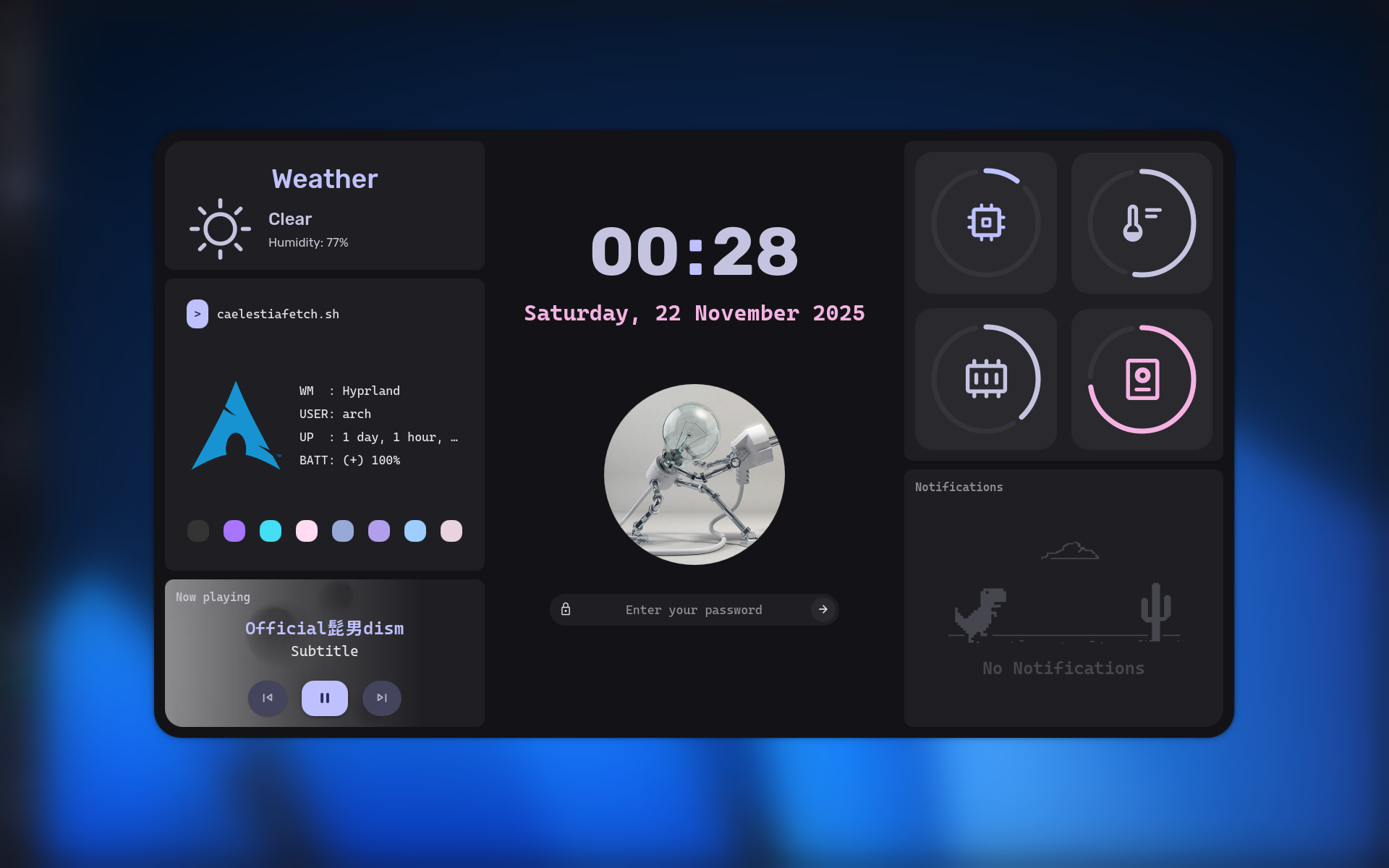
cp -s ~/Pictures/avatar.png ~/.face
- gparted
~/.config/fish/config.fish abbr gparted 'pkexec env WAYLAND_DISPLAY="$XDG_RUNTIME_DIR/$WAYLAND_DISPLAY" XDG_RUNTIME_DIR=/run/user/0 gparted'
利用
キーバインド
|
|
- 画像版 (ライト / ダーク)
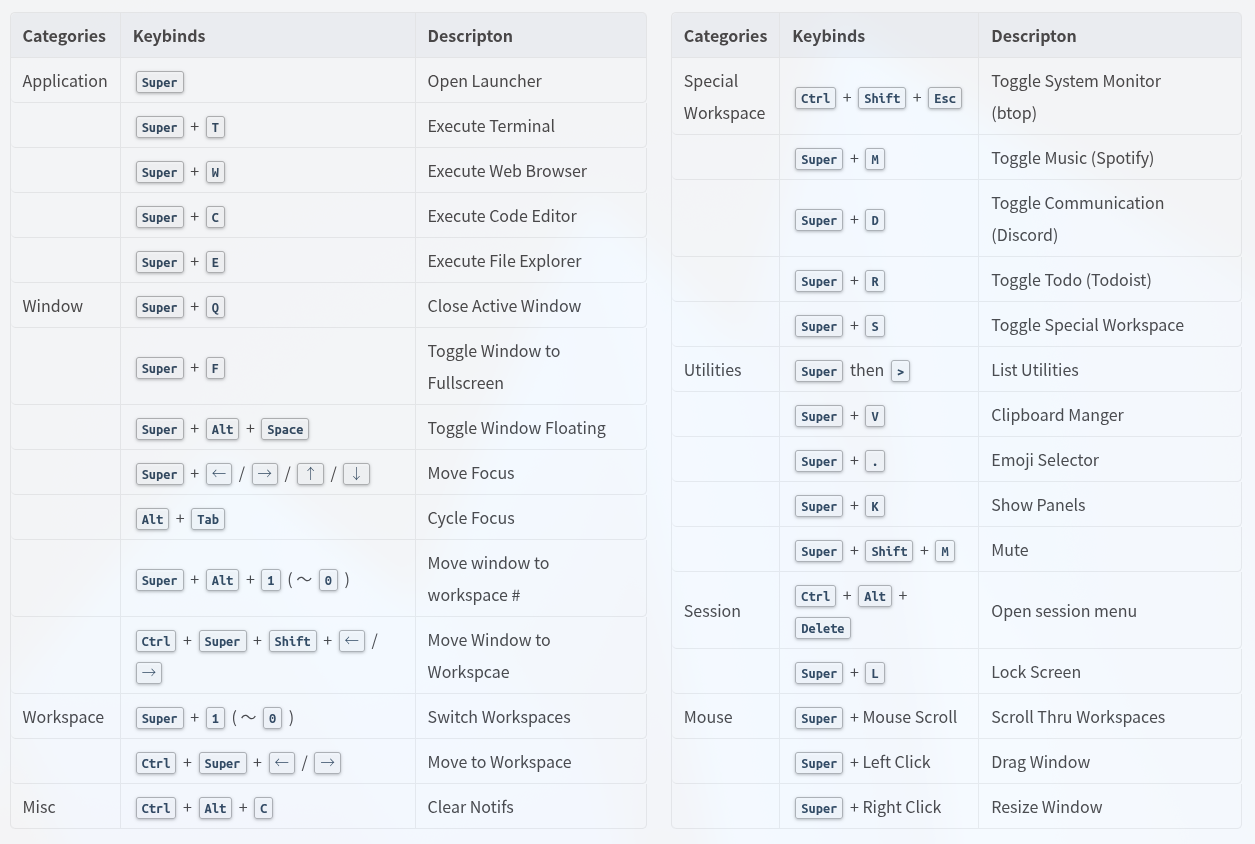
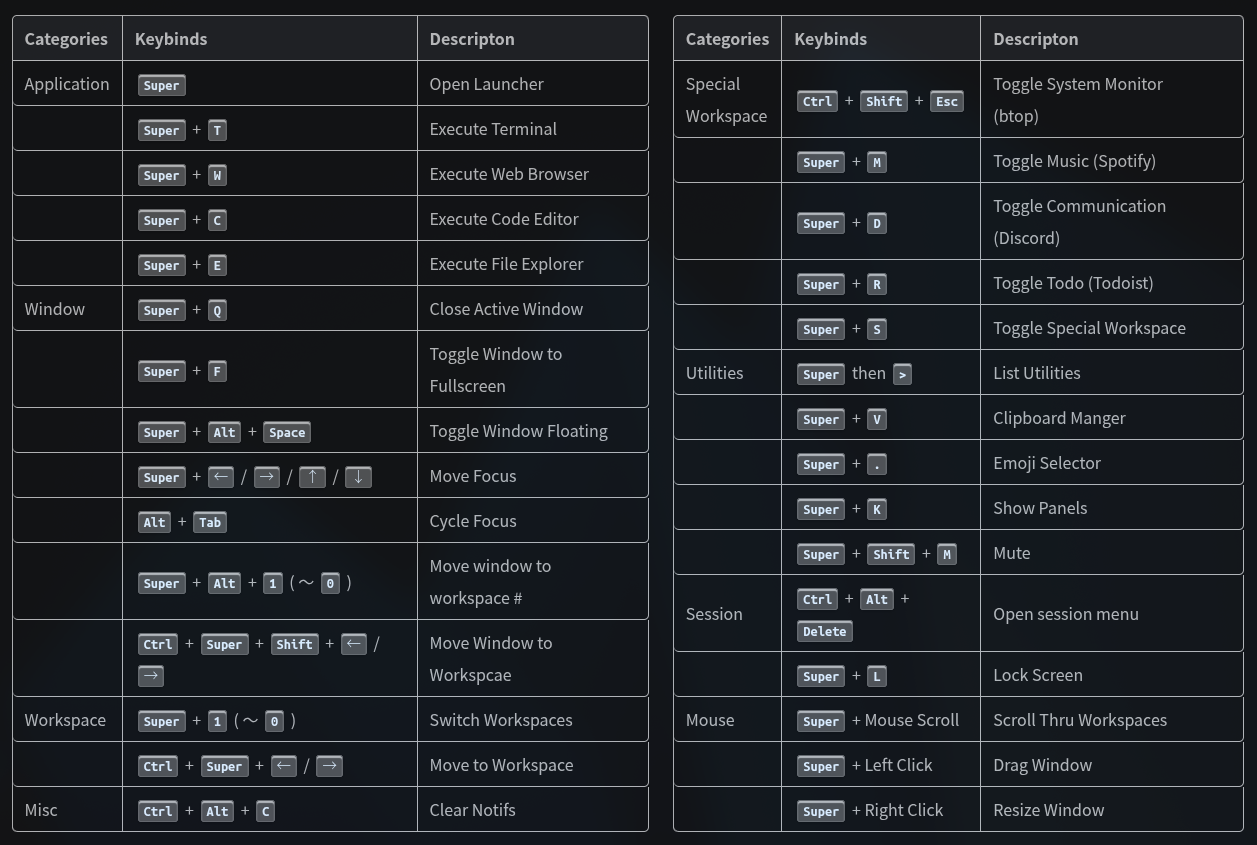
アクション (Super then >)
- 一覧
Name Description Caluculator Do simple math equations (powered by Qalc) Scheme Change the current colour scheme Wallpaper Change the current wallpaper Variant Change the current scheme variant Random Switch to a random wallpaper Light Change the scheme to light mode Dark Change the scheme to dark mode Lock Lock the current sessio Sleep Suspend then hibernate
アプリケーション検索 (Super then @)
- ランチャからアプリケーション情報(.desktop)を検索
ランチャで@k nautilus、@k folder、@k explore等を指定して検索することにより、日本語名称のアプリケーション(例: nautilus)を抽出できます。
https://github.com/caelestia-dots/shell/issues/451
https://github.com/caelestia-dots/shell/commit/85cf0c8aedd7cb0c3b3e455b47cbcad1d972a6c7 - 検索項目一覧
Name Property @iid @ccategories @ddesc @eexeString @wwmClass @ggenericName @kkeywords @t - 関連設定項目
~/.config/caelestia/shell.json {
"launcher": {
"useFuzzy": {
"apps": false
}
}
}
特別ワークスペースspecial
ウィンドウを一時的に退避したり、リストアしたりできます。
Keybinds Description Ctrl+Super+Shift+↑ ウィンドウを特別ワークスペースspecialに移動し、フォーカスも特別ワークスペースspecialに移動 Super+S 特別ワークスペースspecialをトグル Ctrl+Super+Shift+↓ 特別ワークスペースspecialのウィンドウを現在のワークスペースにリストア、フォーカスも現在のワークスペースに移動
画面キャプチャ/録画
キーバインド
Keybinds Description PrintScreen Full screen capture > clipboard Super+Shift+S Capture region (freeze) Super+Shift+Alt+S Capture region Super+Alt+R Record screen with sound Ctrl+Alt+R Record screen Super+Shift+Alt+R Record region Super+Shift+C Colour picker 画面キャプチャ
~/.cache/caelestia/screenshots/に保存される。録画
Super+Alt+Rで録画開始。
再度、Super+Alt+Rで録画終了。
~/Videos/Recordings/に保存される。
To Do
- リモートログイン
- GNOME Remote Desktopを利用する場合
接続後、GDM画面でHyprlandセッションが選択肢に表示されない。
gdmの設定を見直す必要があるかもしれない。 - wayvncを利用する場合
接続先のHyprlandセッションでwayvncを起動しておくことで、接続元からVNCで接続できます。sudo pacman -S wayvnc
~/.config/caelestia/hypr-user.conf # wayvnc
exec-once = wayvnc 0.0.0.0 5900
- GNOME Remote Desktopを利用する場合
- VPN
shell.jsonにvpnセクションがあり、デフォルトは無効化状態になっている。
wireguardをopenvpnに変更して有効化可能か確認する。 - 背景に時刻表示 画面右下に表示されるようになるけれど不要なので無効のままにする。
~/.config/caelestia/shell.json {
"background": {
"desktopClock": {
"enabled": true
},
"enabled": true,
"visualiser": {
"blur": false,
"enabled": false,
"autoHide": true,
"rounding": 1,
"spacing": 1
}
}
} - Bluetoothの確認
ペアリング、接続、動作に問題ありませんでした。 - Game Mode
Quick Toggles の右側から二番目 - Installing VSCode/VSCodium configs
https://github.com/caelestia-dots/caelestia?tab=readme-ov-file#installing-vscodevscodium-configs - メディアアプリの切り替え
画面上部パネル > Media > 🔽からアプリを選択 - Gapをさらに調整したい場合addreservedを使う
一部のディスプレイで下に余白ができたので補正しました。何らかのエラーがある場合にメッセージ表示用の余白ができるからかもしれません。~/.config/caelestia/hypr-user.conf monitor = , addreserved, 0, -20, 0, 0 # top, bottom, left, right
- トップパネルのPerformanceタブのチャートの見方
位置 内容 左グラフの右上 GPU Usage % 左グラフの左下 GPU Temp 中グラフの右上 CPU Usage % 中グラフの左下 CPU Temp 右グラフの右上 Storage Use % 右グラフの左下 Memory Use % - スリープモードの永続的な抑止方法
とりあえずタイムアウト値を十分大きな値にしておく。
0にすると一時的にロック画面に遷移してしまう。ログイン直後も。
enableフラグのようなものがないか確認する。 - Thunar の設定
sudo pacman -S thunar gvfs-smb
- メニューバーを非表示
- ステータスバーを非表示
- 日付書式を
YYYY/MM/DD hh:mm:ssに変更 - 閉じるボタンを追加
カスタムウィンドウ装飾を利用を有効にした後で以下コマンドを実行xfconf-query --channel thunar --property /misc-show-close-buttons-in-tabs --create --type bool --set true
- プラグイン
sudo pacman -S thunar-archive-plugin file-roller
- Polkit Agent
https://wiki.hypr.land/Hypr-Ecosystem/hyprpolkitagent/sudo pacman -S hyprpolkitagent
~/.config/caelestia/hypr-user.conf exec-once = systemctl --user hyprpolkitagent.service
- ターミナルを開く設定(caelestiaをインストールした後で実行)
cd ~/.config
mv Thunar Thunar.bak
ln -s /home/arch/.local/share/caelestia/thunar ./Thunar
- Quick Shellのデバッグログ表示
Quick Shellを一時的にVerbose(-v: INFO, -vv: DEBUG)モードにします。確認が終わったらdaemonモードに戻します。pkill qs
qs -c caelestia -n -vvpkill qs
qs -c caelestia -n -d - 左上のOSアイコンクリックでランチャ表示
/etc/xdg/quickshell/caelestia/modules/bar/components/OsIcon.qml import qs.components.effects
import qs.components
import qs.services
import qs.config
import qs.utils
import Quickshell
import QtQuick
Item {
id: root
implicitWidth: icon.implicitHeight + Appearance.padding.small * 2
implicitHeight: icon.implicitHeight
StateLayer {
// Cursed workaround to make the height larger than the parent
anchors.fill: undefined
anchors.centerIn: parent
implicitWidth: implicitHeight
implicitHeight: icon.implicitHeight + Appearance.padding.small * 2
radius: Appearance.rounding.full
function onClicked(): void {
visibilities.launcher = !visibilities.launcher;
}
}
ColouredIcon {
id: icon
anchors.centerIn: parent
anchors.horizontalCenterOffset: -1
source: SysInfo.osLogo
implicitSize: Appearance.font.size.large * 1.2
colour: Colours.palette.m3tertiary
}
}ファイル更新後、全体の表示をリフレッシュするためにセッションを終了する必要があります。