
Faugus Launcher
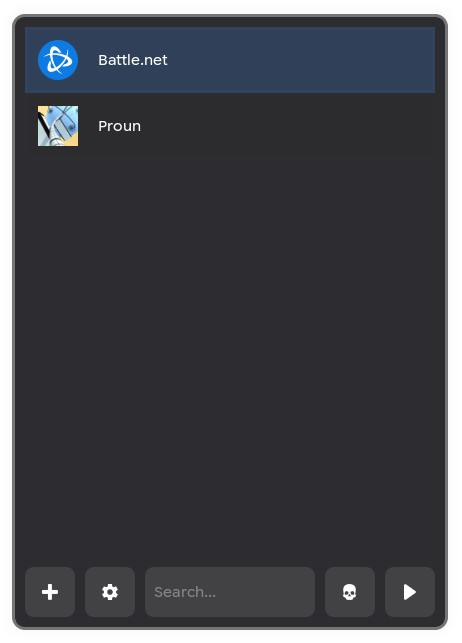
LinuxでWindowsアプリケーションを実行するフロントエンドFaugus Launcherを使ってみました。
https://github.com/Faugus/faugus-launcher
環境
- CachyOS
- Hyprland
- flatpak
- Faugus Launcher
- Battle.net
- Proun
構築
- インストール(flatpakの場合)
flatpak install flathub io.github.Faugus.faugus-launcher
- インストール(pacmanの場合)
sudo pacman -S faugus-launcher
設定
- Windowsアプリケーションの実行形式を直接指定する場合は大文字の拡張子(.EXE)を小文字(.exe)にしておく
- Vulkanをサポートしていない(古い)オンボードグラフィクスデバイスの場合
⚙️ >Global Environment Variablesに以下を追加してOpenGLで動作させる。PROTON_USE_WINED3D=1
利用
Battle.net をインストールする場合
- Faugus Launcherを起動
- ➕️
Windows GameをBattle.netに変更- ▶️
- ログインせずにログインウィンドウを閉じる
- インストール完了後に右クリック「edit」>「Tool」>「Game Arguments」に以下を追加
-d3d11
- Battle.netを起動
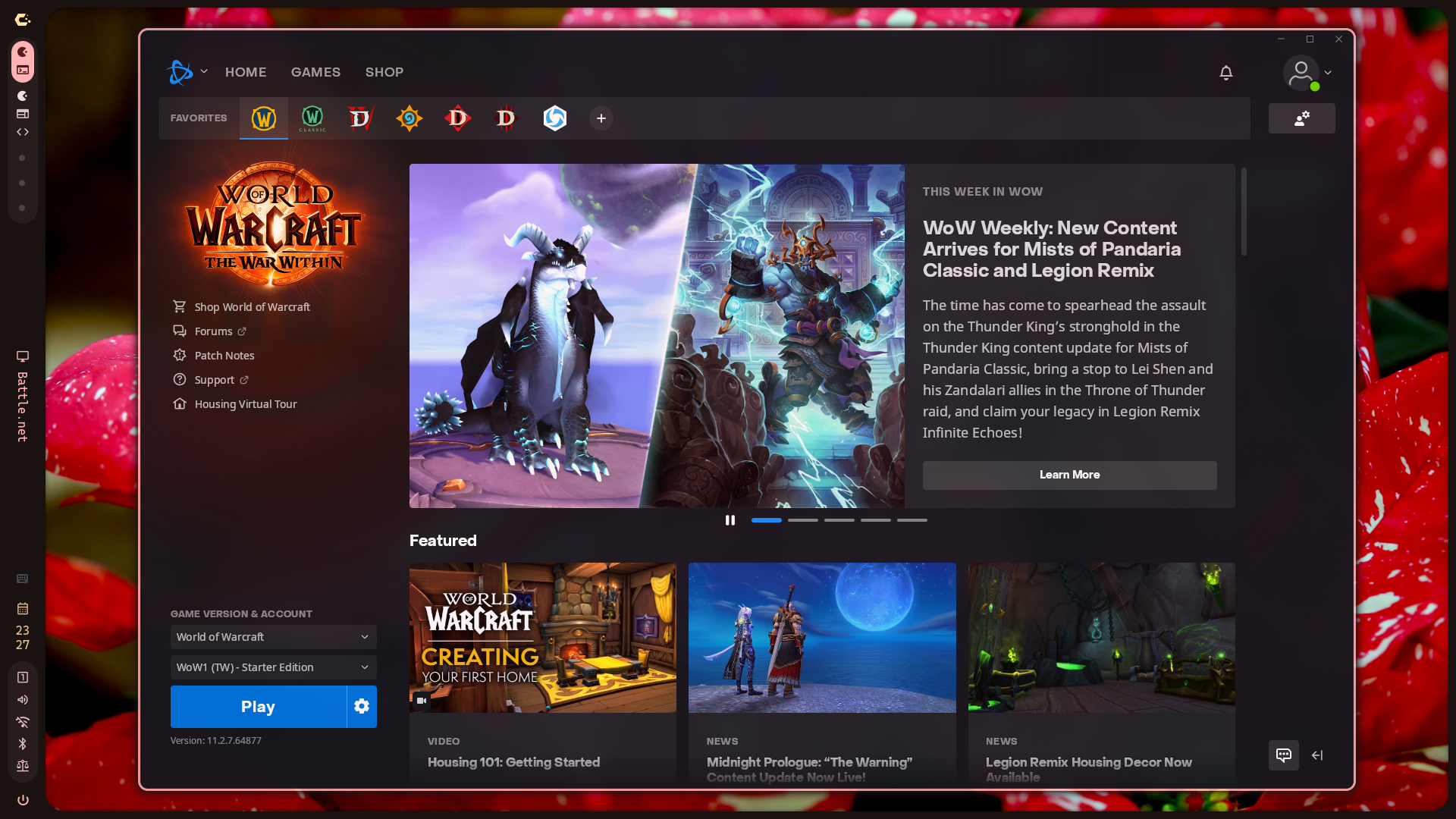
Windowsアプリ(Proun)をインストールする場合
- Faugus Launcherを起動
- ➕️
- インストーラを選択
- ▶️
- インストールが完了したら、アプリケーション名を右クリックして
Edit Pathにプログラム本体のパスを指定/home/arch/Faugus/proun/drive_c/Program Files (x86)/Proun/Proun.exe
- Shortcut の
App MenuをチェックしてOk
Prounを起動
フルスクリーンの最大解像度を選択して開始
Comments